

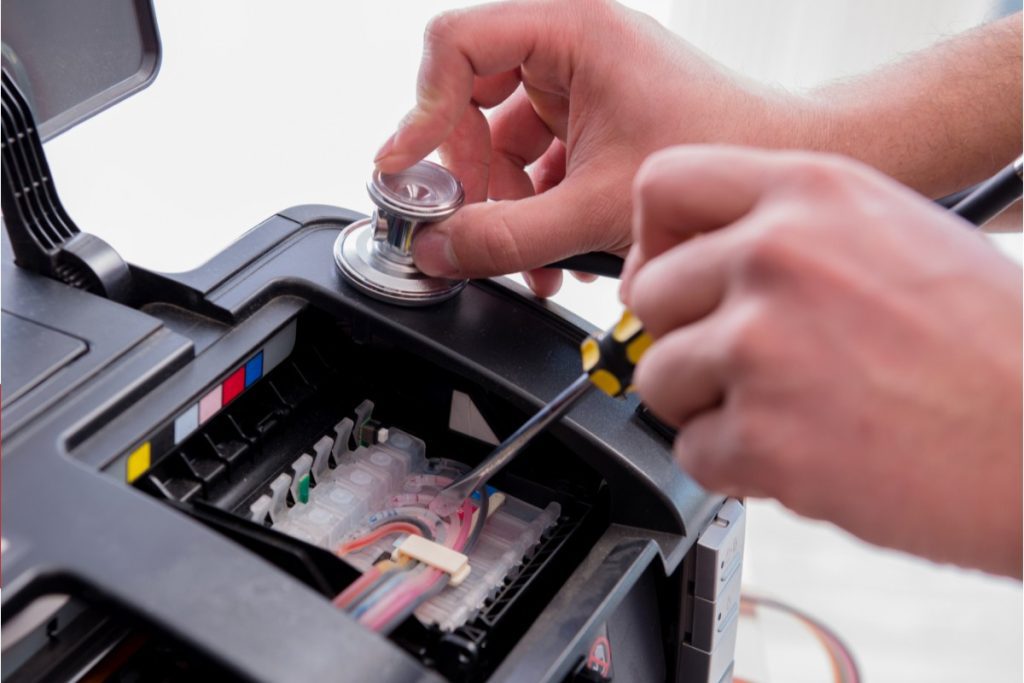
When your printer stops working at the worst possible moment — a report due, an urgent contract waiting, or a client standing by — it’s more than just frustrating. A simple “printer not printing” issue can bring your entire workflow to a halt. But the good news is: most printer problems have straightforward explanations and even simpler fixes.
Whether you’re dealing with printer printing issues, unexpected printer printing errors, or you just can’t get the device to respond, this guide will help you troubleshoot every possible cause step-by-step.
Let’s walk through what might be wrong — and what you can do about it — before you rush to call a technician or replace your printer.
Start with the Basics — Check the Power and Connections
The number one reason for a printer not printing is usually something small: a disconnected cable, a powered-off unit, or a loose plug.
Power Supply
Ensure that your printer’s power cable is securely connected to both the wall socket and the printer. Some printers have a power switch at the back in addition to the main button on the front — check both.
If your office experiences occasional power surges or voltage drops (common in older buildings across the UAE), consider using a surge protector.
Cables and Wi-Fi
For USB printers, ensure the cable isn’t damaged and is securely connected to the correct port. For network or wireless printers, confirm that the printer and computer are on the same Wi-Fi network.
If your printer uses Ethernet, check that the LAN light on the printer is blinking — this means it’s connected to the network.
Printer Not Printing Due to Queue Errors
When you hit “Print” and nothing happens, your print job might be stuck in the print queue.
Check the Print Queue
-
Open your printer queue on your computer (Control Panel → Devices and Printers → Select Printer → See What’s Printing).
-
If you see multiple documents listed as “Pending” or “Error,” right-click and cancel all jobs.
-
Restart the printer and try again.
Sometimes, one faulty job can block the entire queue. Clearing it usually solves printer printing issues instantly.
Restart the Print Spooler Service
In Windows, the print spooler controls communication between your computer and printer. Restarting it can fix many invisible glitches:
-
Press
Windows + R -
Type
services.msc -
Find Print Spooler
-
Right-click → Restart
After that, try printing again.
Paper and Ink Problems
If your printer is turning on but still not printing, check the paper and ink/toner levels.
Paper Jams
Even a small torn piece of paper can cause a jam that blocks printing. Open the printer’s main tray, gently remove any stuck paper, and make sure there’s no debris inside.
Use clean, dry paper of the right size — humidity in UAE offices can sometimes cause paper to stick together, leading to feeding errors.
Low Ink or Toner
Most printers show a warning light or an alert message when ink or toner is low. Refill or replace cartridges if needed.
If your printouts are faint, missing colours, or streaky, try running a print head cleaning cycle from the printer’s menu. This clears dried ink that can block nozzles.
Printer Not Printing Because of Driver Issues
Printer drivers act as translators between your computer and the printer. When they’re outdated or corrupted, you’ll face communication problems.
Reinstall or Update Drivers
Go to the printer manufacturer’s website and download the latest drivers for your specific model and operating system.
In Windows:
-
Open Device Manager
-
Find your printer under “Printers”
-
Right-click → Update Driver
For macOS, go to System Settings → Printers & Scanners and remove/re-add the printer. The system usually installs the right driver automatically.
Outdated drivers are a common cause of printer printing errors, so keeping them current is an easy preventive step.
Network or Connectivity Glitches
If your office printer is shared across multiple computers or connected via Wi-Fi, network issues can easily cause a printer not printing scenario.
Check Network Connection
Make sure:
-
The printer’s Wi-Fi signal is stable.
-
It’s connected to the correct SSID.
-
Your computer and printer are on the same network band (2.4GHz or 5GHz).
Try printing a network configuration page from the printer’s settings — it will show whether the printer is connected properly.
Assign a Static IP
Sometimes printers lose connection when the router assigns them a new IP address. Setting a static IP address can prevent random disconnections.
If you’re using an office network managed by IT, ask your admin to reserve the printer’s IP on the router. This small fix eliminates one of the most frustrating printer printing issues.
Check Printer Settings and Defaults
Sometimes your computer is sending print jobs to the wrong printer — especially if you’ve installed multiple devices.
Set the Correct Default Printer
Go to Control Panel → Devices and Printers and make sure the correct printer is marked as Default.
If another printer is selected, your documents might go elsewhere — or to a virtual “PDF printer” that doesn’t produce a physical page.
Pause or Offline Mode
If your printer is set to Offline or Paused, it won’t print anything.
Right-click the printer icon → See what’s printing → Printer menu → Uncheck Pause Printing and Use Printer Offline.
Software or Operating System Conflicts
Sometimes, after system updates (especially on Windows 11 or macOS), your printer drivers or permissions might reset.
Try Reinstalling the Printer
-
Remove the printer from your devices list.
-
Restart your computer.
-
Re-add the printer using “Add a device.”
This refresh clears old settings that may cause printer printing errors.
If your office uses managed software like Microsoft 365 or custom ERP systems that automatically send print commands, check if the application settings have changed after an update.
Firewall or Security Software Blocking Printing
Antivirus or firewall software can occasionally block network communication between your PC and printer.
Temporary Disable Test
Temporarily turn off your antivirus or firewall and try printing again. If it works, add your printer’s IP or driver service to the “Allowed” list in your firewall settings.
Be careful to turn protection back on immediately after testing.
Outdated Firmware in the Printer
Just like software updates for your phone or computer, printers also receive firmware updates. These improve compatibility and fix bugs.
Visit the manufacturer’s website, search for your printer model, and check for available firmware updates.
Updating firmware often resolves stubborn printer not printing cases — especially in networked printers.
Hardware Faults — When to Call for Help
If you’ve tried everything above and your printer still won’t print, it could be a hardware problem.
Some common culprits include:
-
Faulty print heads
-
Burned-out fuser unit (for laser printers)
-
Damaged motherboard or network card
-
Worn rollers or paper feed assemblies
These issues usually require professional servicing.
When It’s Better to Rent Than Repair
If your printer is older, inefficient, or constantly breaking down, constant repairs can add up fast. At that point, you might consider a printer for rent instead of buying a new.
At Afan Office Equipment, we provide reliable printer rental services across the UAE. Renting allows you to:
-
Access the latest models without heavy upfront costs.
-
Get maintenance and repairs included in the plan.
-
Replace or upgrade devices anytime your needs change.
So if your printer is not printing, issues keep coming back, it might be time to rethink your setup instead of fighting with outdated hardware.
Preventive Maintenance Tips
Avoiding printing issues altogether is easier than fixing them later. Here’s how you can keep your printer healthy:
Regular Cleaning
Dust buildup is common in UAE offices, especially in high-traffic or open areas. Use a soft, dry cloth to clean the exterior and paper trays weekly.
Scheduled Servicing
Get your printers serviced every 6–12 months. A technician can replace worn-out parts before they fail.
Use Quality Supplies
Always use the manufacturer-recommended ink, toner, and paper. Cheap alternatives often lead to clogs, leaks, and poor print quality.
Keep Firmware and Drivers Updated
Set a reminder to check for updates once a quarter — it keeps your system secure and functional.
Smart Printing Practices for Offices
If you manage multiple printers, adopt these habits to reduce downtime:
-
Use centralised print management software to monitor usage.
-
Assign print permissions to avoid accidental overloads.
-
Keep backup printers available for urgent work.
-
Maintain a small stock of toner and paper to avoid last-minute shortages.
If you’re unsure which setup fits your business, Afan Office Equipment can help you plan a reliable office printing system tailored for your daily workflow.
Common Questions About Printer Not Printing Issues
Q1: My printer says “Ready” but won’t print — why?
This could be a driver issue or a communication problem between your PC and printer. Try removing and re-adding the device.
Q2: How can I fix poor print quality?
Run a print head cleaning cycle, replace old cartridges, and use the correct paper type. Also, store ink cartridges properly to avoid drying.
Q3: Should I buy or rent a printer?
If you print occasionally, owning a printer may be fine. But for offices or schools with daily printing, choosing a printer for rent saves money on maintenance and supplies.
Q4: Can humidity affect printers?
Yes. The UAE’s humid months can cause paper to curl or ink to dry faster. Keep your printer in a cool, dry area.
When to Call Afan Office Equipment
If you’ve tried every fix and your printer not printing problem still persists, don’t waste more hours troubleshooting. Call Afan Office Equipment for expert help.
Our technicians can diagnose and repair all types of printer printing errors — from inkjet to laser models — quickly and affordably.
We also offer short- and long-term printer rental options across Dubai, Abu Dhabi, Sharjah, and other Emirates, so your business never faces downtime again.
Final Thoughts
A printer not printing doesn’t always mean your printer is broken. In most cases, the cause is something small — a connection issue, an outdated driver, or a minor jam. But ignoring the signs can turn a small delay into a major disruption.
By following the steps above and keeping your printer maintained, you’ll save time, stress, and money.
And if your printer is beyond repair or simply not worth the trouble, Afan Office Equipment is here to help you stay productive. Whether you need repairs, maintenance, or a printer for rent, we’ve got your back.